


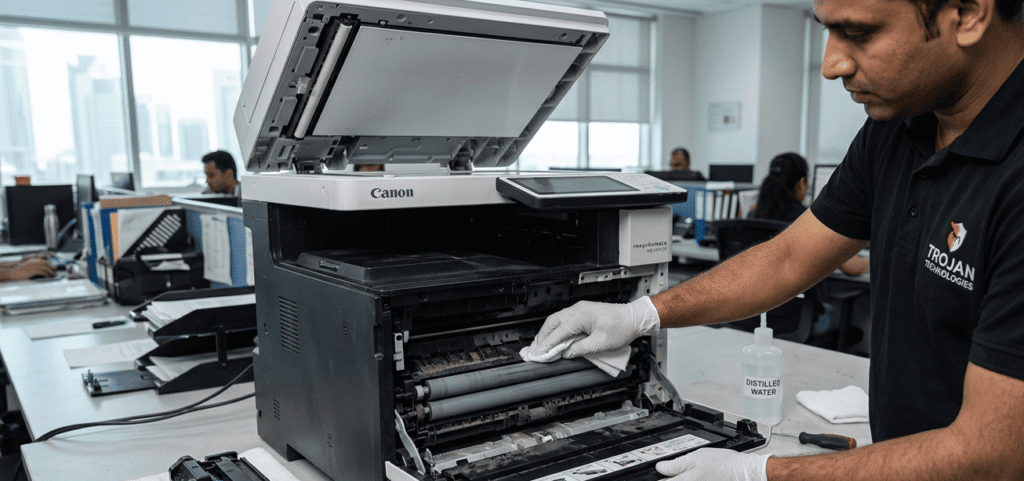
If your laser printer is leaving black lines, smudges, or streaks on your documents, the problem is likely dirty printer rollers. Over time, dust, paper fibers, and toner residue build up on the rollers, causing poor print quality and paper jams.
Learning how to clean laser printer rollers is a simple maintenance task that can save you money and extend the life of your printer. In this step-by-step guide, we’ll show you exactly how to do it safely and effectively.
What Are Printer Rollers and Why Do They Get Dirty?
Printer rollers are rubber cylinders inside your printer that pull paper through the machine. They are responsible for feeding paper, guiding it during printing, and ejecting it smoothly. Because they come into contact with paper and toner, they naturally collect dust, paper fibers, and fine toner particles.
Common Symptoms of Dirty Printer Rollers:
| Symptom | What It Looks Like |
|---|---|
| Smudged text | Black marks or streaks on the page |
| Faded prints | Light or uneven text |
| Paper jams | Paper gets stuck or doesn’t feed properly |
| Multiple pages feeding | Several pages pull through at once |
If you’re noticing any of these dirty printer roller symptoms, it’s time to clean your printer rollers.
👉 Related: Printer Service in Qatar
Tools You’ll Need
Before you start, gather these simple items:
| Tool | Purpose |
|---|---|
| Lint-free cloth | For wiping rollers clean |
| Distilled water | For moistening the cloth |
| Isopropyl alcohol (optional) | For stubborn residue |
| Printer roller cleaning kit (optional) | Pre-moistened cleaning swabs |
| Screwdriver (if needed) | To remove the toner cartridge or access rollers |
Pro Tip: Using a printer roller cleaning kit is the safest and most effective method. These kits come with lint-free swabs and special cleaning solution designed specifically for rubber rollers.
👉 Learn More: Canon Printer Service | Ricoh Printer Service
Step-by-Step Guide: How to Clean Laser Printer Rollers
Follow these steps carefully to clean your laser printer rollers without damaging the machine.
Step 1: Turn Off and Unplug the Printer
Safety first. Switch off the printer and unplug it from the power outlet. This prevents any electrical accidents and ensures the rollers are stationary.
Step 2: Open the Printer Cover and Remove the Toner Cartridge
Locate the front or top cover of your printer. Open it to access the inside. Carefully remove the toner cartridge and the drum unit (if your printer has one). Place them on a clean, flat surface away from sunlight.
Step 3: Locate the Rollers
Inside the printer, you will see rubber rollers. These are usually located:
Near the paper feed tray
Under the toner cartridge area
Near the paper exit slot
👉 Related: Brother Printer Service Center Qatar
Step 4: Clean the Rollers with a Lint-Free Cloth
Dampen a lint-free cloth with distilled water (or a small amount of isopropyl alcohol for tough stains). Gently wipe the rollers in a circular motion. Rotate the rollers manually if they are accessible, to clean the entire surface.
⚠️ Important: Do not use too much liquid. The cloth should be damp, not wet. Excess liquid can damage the printer.
Step 5: Let the Rollers Dry Completely
Wait for 10–15 minutes to allow the rollers to air dry. This is crucial before reassembling the printer to avoid any moisture damage or print defects.
Step 6: Reinstall the Toner Cartridge
Once the rollers are dry, carefully place the toner cartridge and drum unit back into their original positions. Close the printer cover.
Step 7: Test Print
Plug the printer back in and turn it on. Run a test page to check if the smudges or streaks are gone. If the print quality has improved, you’ve successfully cleaned the rollers.
👉 Contact us for professional printer maintenance: Get a Free Quote
Alternative Cleaning Methods
If you don’t have a lint-free cloth, you can use:
A printer roller cleaning kit – designed specifically for this task
Cotton swabs – for small or hard-to-reach rollers
Avoid using paper towels or tissues, as they can leave lint behind, which may cause more paper jams.
👉 Explore our range of printer supplies: Toners & Supplies
❓ Frequently Asked Questions
How often should I clean my printer rollers?
It’s recommended to clean the rollers every 6 months or whenever you notice print quality issues.
Can I use water to clean printer rollers?
Yes, distilled water works well. Avoid tap water as minerals can leave residue.
What is a printer roller cleaning kit?
It’s a kit that includes cleaning swabs and solution specifically designed for rubber printer rollers. It’s safe and effective.
Is it safe to clean printer rollers myself?
Yes, if you follow the manufacturer’s guidelines and avoid applying too much pressure or liquid.
👉 Need printer rental or maintenance plans? Printer Rental in Qatar
What is laser printer pick up roller cleaning and why is it important?
It is the process of cleaning the rubber roller that feeds paper into the printer. Dirty rollers cause paper jams, smudges, and feeding issues. Regular cleaning ensures smooth printing and extends printer life.
👉 Related: Printer Service in Qatar
🏁 Final Thoughts
Learning how to clean laser printer rollers is one of the most cost-effective printer maintenance tasks you can do at home or in the office. It helps improve print quality, reduces paper jams, and extends the life of your printer.
If you notice dirty printer roller symptoms like streaks, fading, or paper jams, don’t rush to buy a new printer. Start with a simple roller cleaning session. For heavy-duty office needs, consider upgrading to a managed print solution with regular maintenance included.
📞 Need professional printer service or maintenance? Contact Trojan Technologies today for a free consultation.
👉 Related: IT AMC Services | Print Management Solutions
📞 Contact Trojan Technologies today for a transparent, no-obligation corporate consultation.
📍 Proudly serving corporate enterprises across Doha, Al Rayyan, Al Wakrah, and Lusail.